Home / Demo guide
Demo guide
Try the demo in 10 minutes
The demo is a complete sample rental company called Demo Rentals. Follow these steps in order: first make a booking as a client, then watch that same booking arrive at the office and take it through to payment.
Before you start
- A computer or tablet works best. Keep this guide open in one tab and the demo in another.
- Use your own email address, so you receive the emails a client would get.
- No real money changes hands. Payments use a test card, shown in step 10.
- Demo Rentals resets every night, so feel free to try anything.
Part 1 - About 4 minutes
Book as a client
Open the demo and leave your details
Go to kairoo.app/demo, fill in the short form and click Enter the demo. You'll see two options.
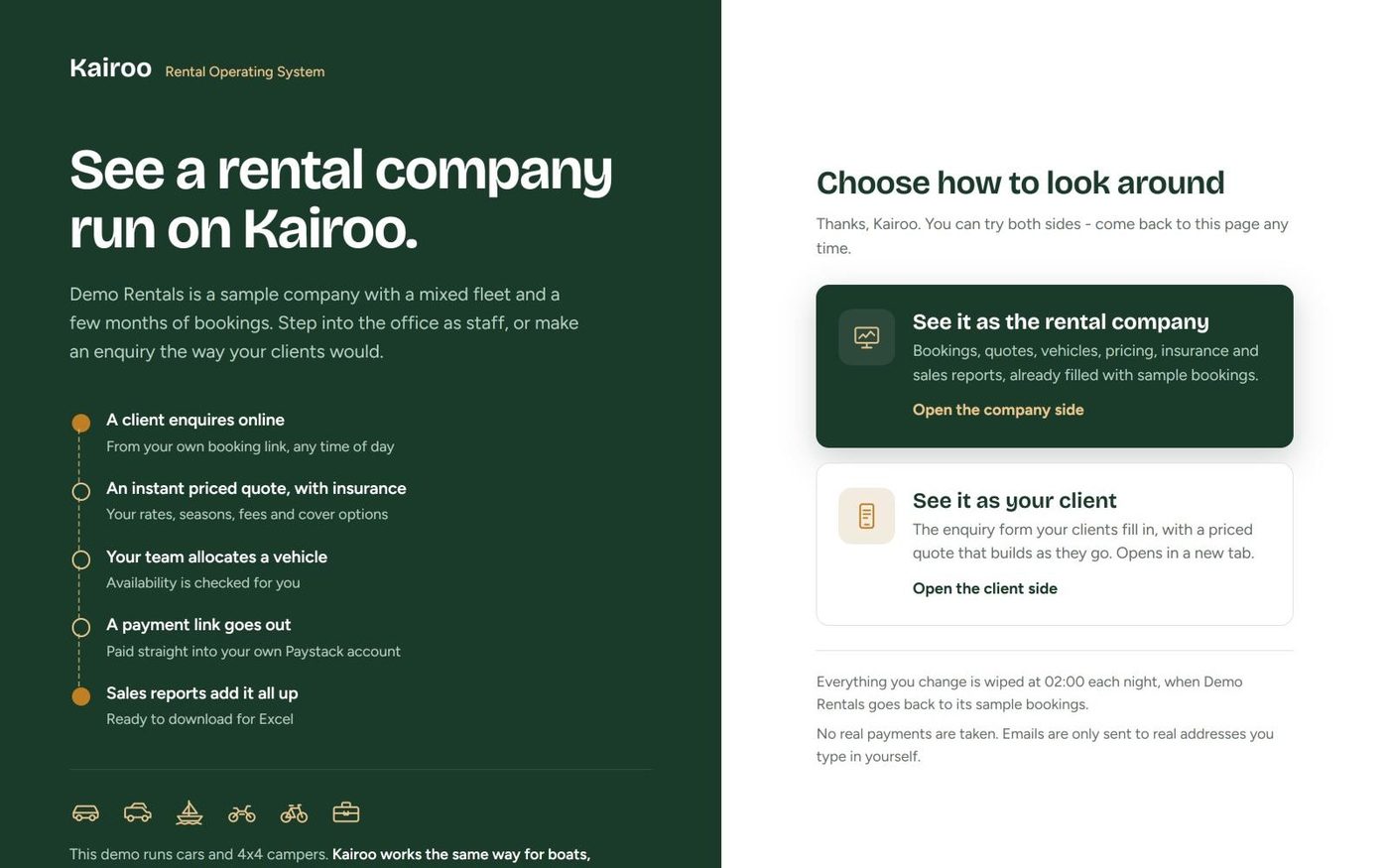
Open the client side
Click Open the client side. The Demo Rentals enquiry form opens in a new tab: exactly what your own clients would see, with your logo.
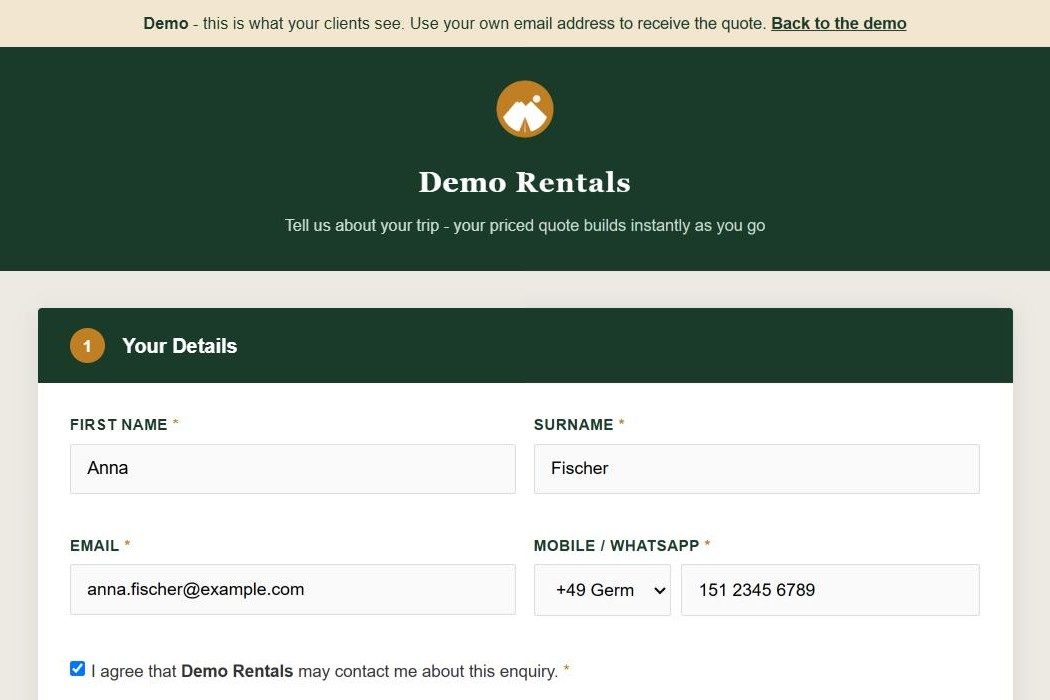
Enter your name, your own email address and your phone number, tick the box and click Continue.
The enquiry is now saved for the company, even before a quote is confirmed.
Choose a vehicle and dates
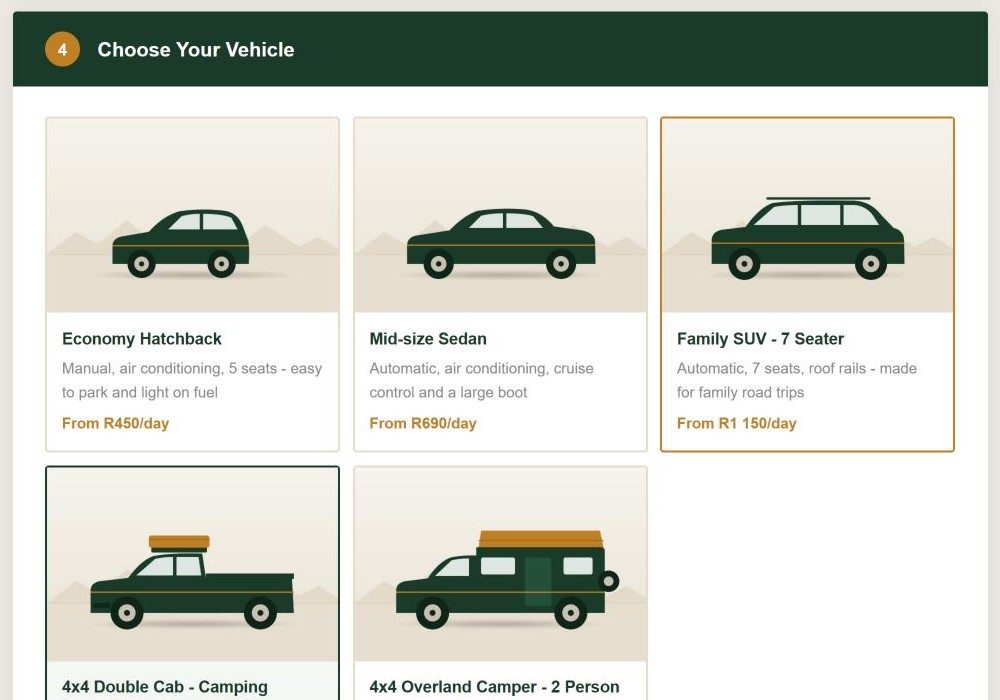
Fill in the few details about yourself and your group, then pick a vehicle. Choose your pickup and return dates on the calendar, which shows which days are available.
Choose your insurance and watch the total
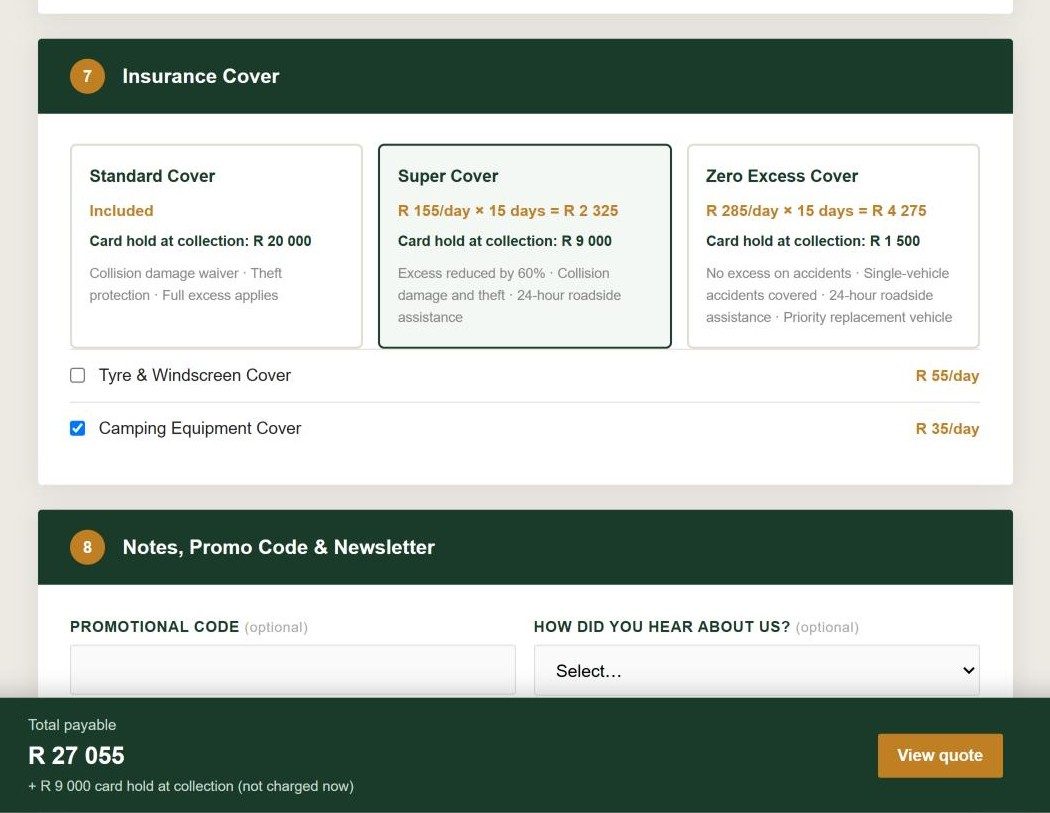
Pick a trip setup, the countries you'll visit and a cover level. The total payable and the card hold at the bottom of the screen update with every choice.
Check the quote and confirm
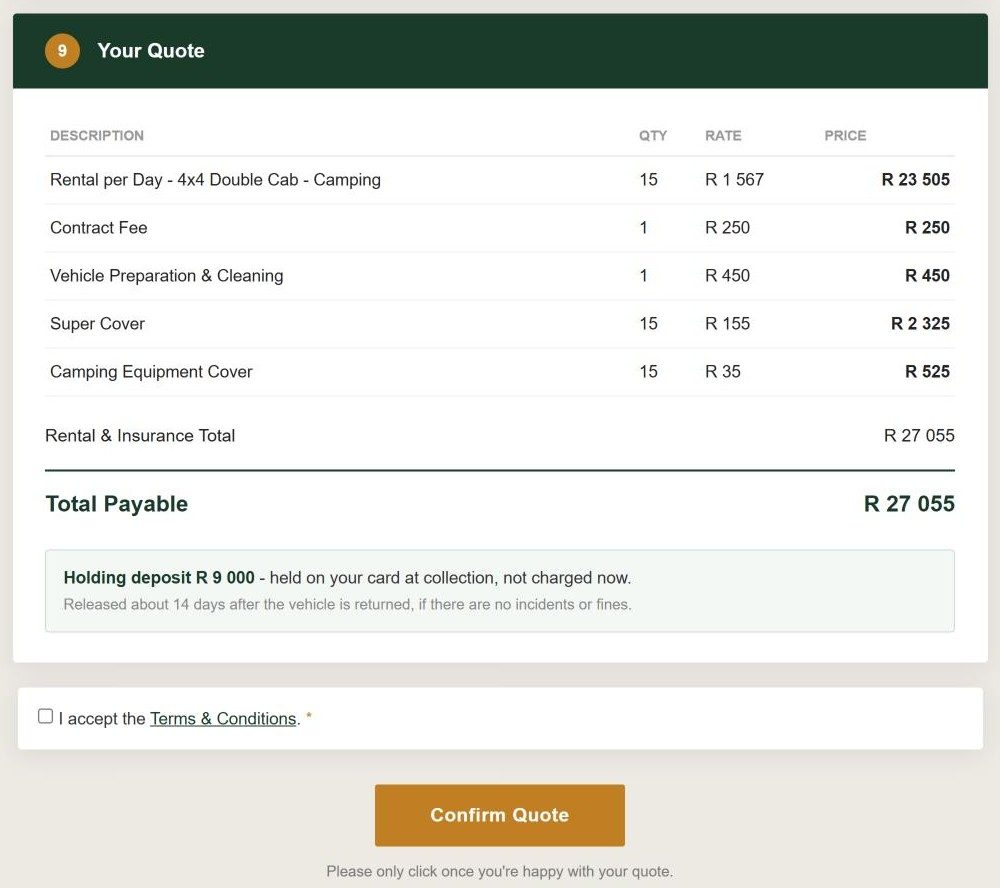
Scroll down to Your Quote to see every amount itemised. Tick the Terms and Conditions and click Confirm Quote.
You'll see a thank-you message with your quote number, and the full quote arrives in your inbox.
Part 2 - About 6 minutes
Run it as the rental company
Open the company side
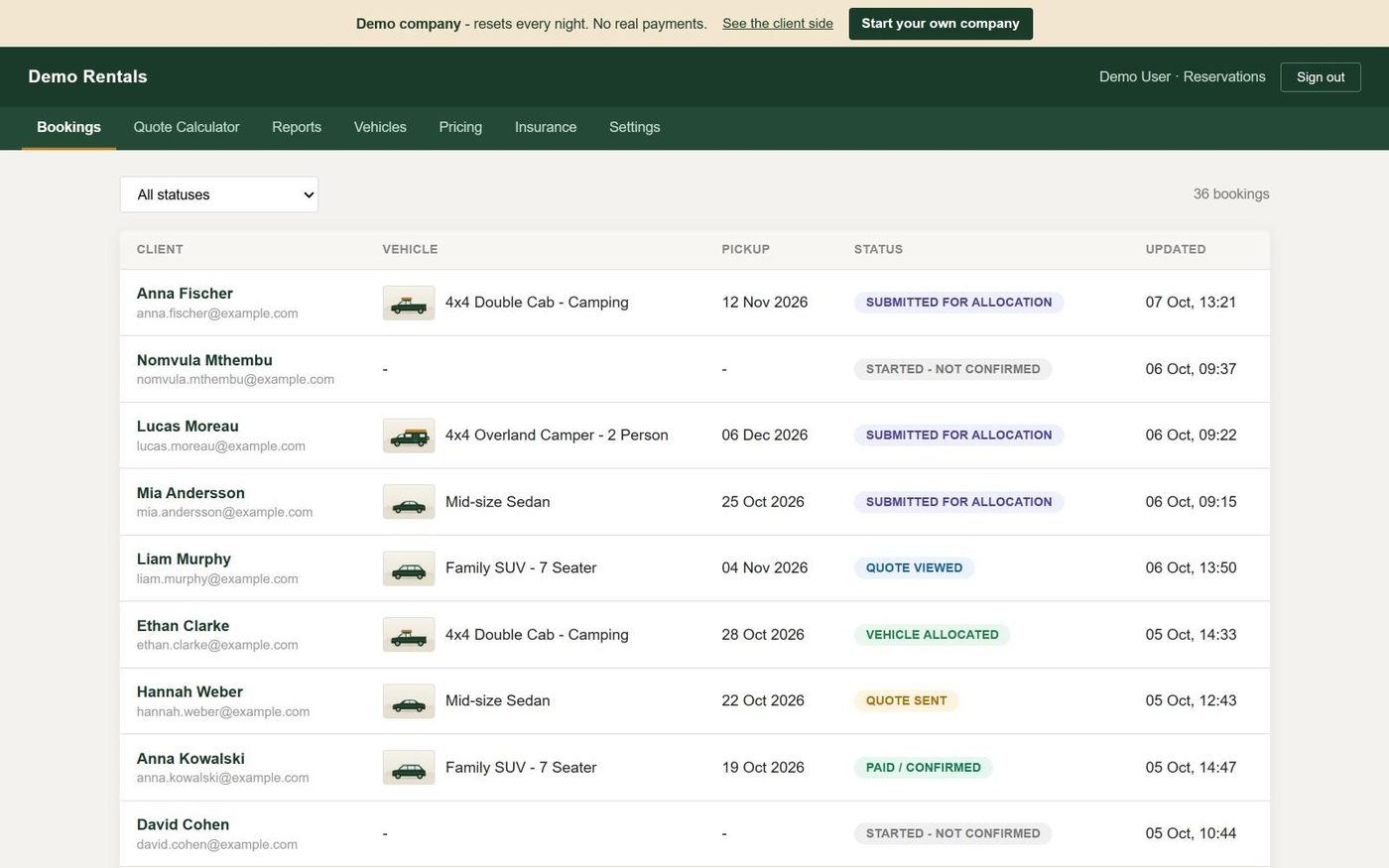
Go back to the demo tab and click Open the company side. You're signed in to the Demo Rentals office and land on Bookings.
Open your own quote
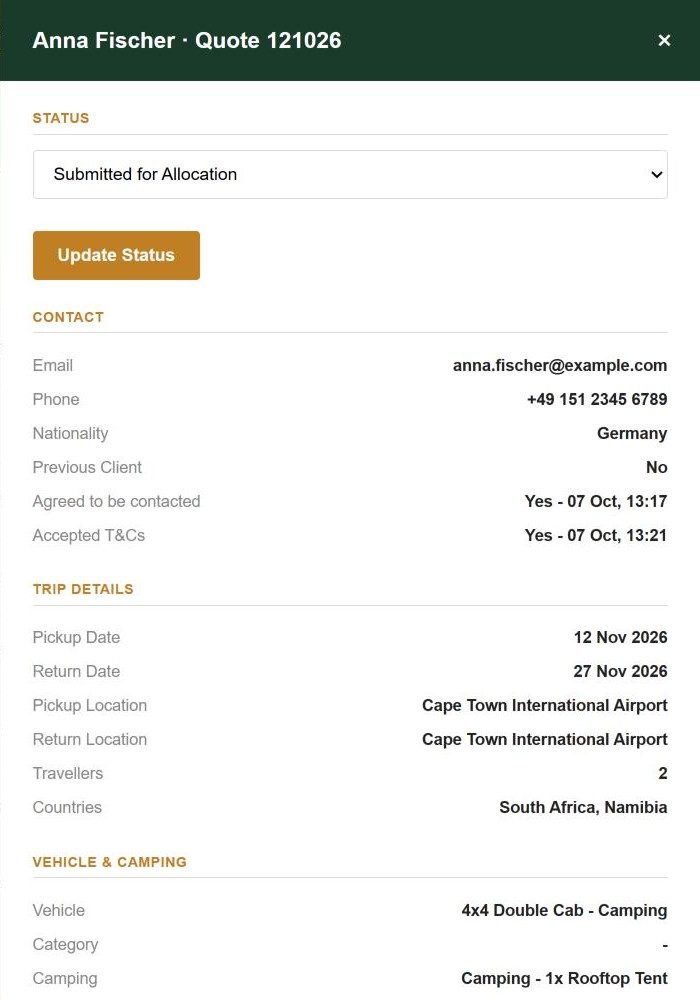
Your booking is at the top of the list, marked Submitted for Allocation. Click your name to open it and see everything you chose as the client.
Allocate a vehicle
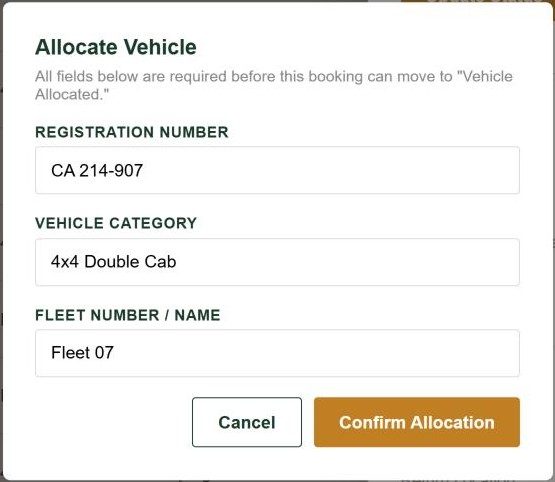
At the top of the booking, choose Vehicle Allocated in the status list and click Update Status. Fill in the registration, category and fleet number, then click Confirm Allocation.
Send the payment link
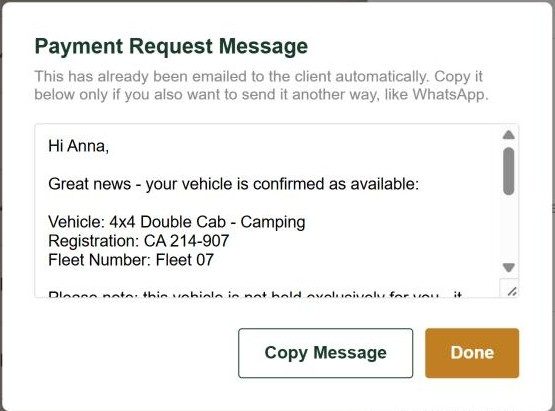
Choose Payment Link Sent in the status list and click Update Status. Kairoo creates the payment link, emails it to the client, and shows you the message so you can also send it by WhatsApp.
Pay with the test card
Open the payment email in your inbox and click the payment link. Pay with this test card. No real money is taken.
Card number
4084 0840 8408 4081, any future expiry date, CVV408. If asked, PIN0000and OTP123456.Back in Bookings, the status changes to paid once the payment comes through.
Look at how it's set up
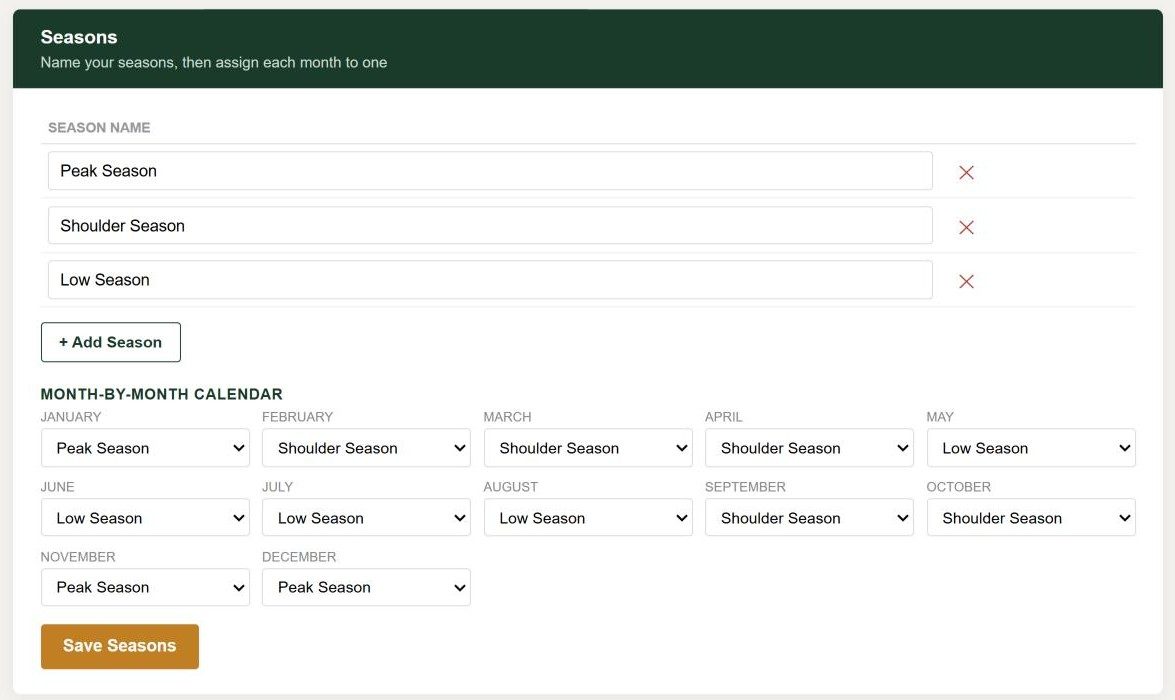
Open Pricing, Insurance, Vehicles and Settings to see how a company enters its own rates, seasons, cover options, fees and deposit rules. Then open Reports.
Try the Quote Calculator too: it's how staff quote a client who phones in.
Good to know
A few things about the demo
- Other visitors may be using Demo Rentals at the same time, so you may see their bookings too.
- Everything you change is undone at the nightly reset.
- The demo sends a limited number of emails each day. If one doesn't arrive, check your spam folder.
- Your own company would use your own logo, vehicles, prices and payment account.
Would you rather be shown around?
Book 20 minutes and we'll walk you through it using one of your own vehicles.